Download Xiaohongshu Videos on iOS
Looking for a Xiaohongshu video downloader iOS option that does not require a sketchy App Store or sideloaded IPA? Use the free web tool in Safari on iPhone or iPad — paste a public share link, download on the same page, then save through the system share sheet into Files or Photos. No account, no TestFlight, and no watermark when the note is public and the link is fresh.
This page is the iOS-specific walkthrough for our browser tool. Android Chrome writes straight to Downloads; on Apple devices Safari often opens a preview first, then you choose where the file lives. If you only need the paste box, jump to the Xiaohongshu Video Downloader homepage; if you want the full iPhone / iPad path, keep reading.
Open the Xiaohongshu Video Downloader →
Why you do not need an iOS app
Third-party “RedNote saver” apps rarely ship cleanly on the App Store. Alternatives push enterprise profiles, ask for Photos access they do not need, or break after an iOS update. Our Xiaohongshu Video Downloader is a website. Safari already handles downloads and the share sheet; the site resolves your note and streams media through an allowlisted proxy. You avoid profile installs, keep Apple’s privacy prompts under your control, and use the same flow on iPhone and iPad.
If you can paste from the clipboard and tap Share, you already have everything required. The phrase people type into Google — xiaohongshu video downloader ios — usually means “save this RedNote clip on my iPhone,” not “install another social client.” A Safari tab is enough: clear site data anytime, and nothing stays on the Home Screen unless you pin it yourself.
Step-by-step on iOS (with screenshots)
Follow these three screens in order. Always use a fresh Copy Link from the Xiaohongshu or RedNote app — expired xsec_token values and private notes fail even when the page loads. Pasting the entire share card (title + URL) is fine; our parser extracts the URL for you.
Copy the share link in Xiaohongshu. Open a public note in the Xiaohongshu or RedNote app, tap Share, then Copy Link so the full xhslink or explore URL is on your clipboard.
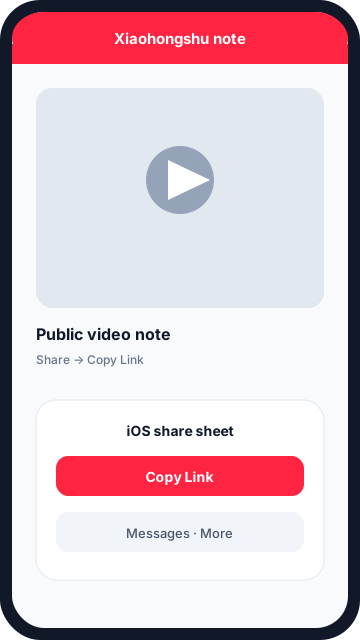
Step 1 — Share the note and tap Copy Link in the Xiaohongshu app. Open the web downloader in Safari. In Safari (or Chrome on iOS), open the Xiaohongshu Video Downloader homepage, paste the link, and tap Download.
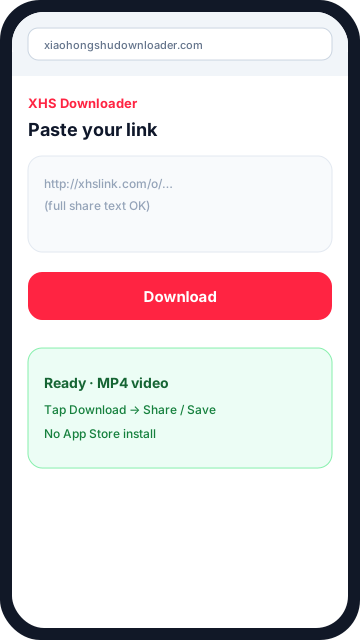
Step 2 — Paste into the Xiaohongshu video downloader iOS page in Safari. Save to Files or Photos. Use the iOS share sheet to Save to Files (Downloads) for videos, or Save Image / Save Video into Photos when the option appears.
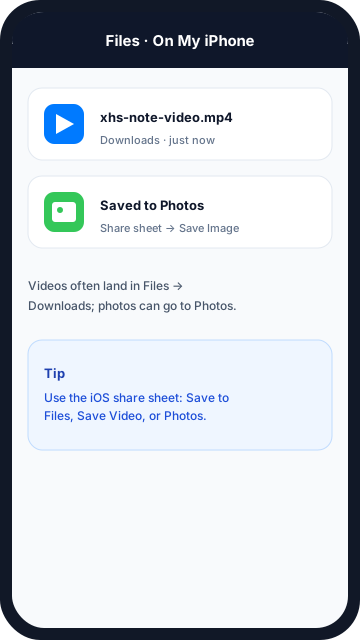
Step 3 — Find MP4s in Files → Downloads, or images/videos in Photos.
Prefer a shorter checklist? Start on the homepage tool after you copy the link, or read how to copy a Xiaohongshu link if Share → Copy Link looks different on your app build. Android users should use the Android guide instead — Chrome’s Downloads folder behaves differently from Safari’s share sheet.
Where files land: Files app and Photos
On iOS, tapping Download often opens the video or image in a new Safari tab (or shows a preview). That is normal. From there, tap the share icon and choose Save to Files — pick On My iPhone → Downloads (or iCloud Drive if you prefer). MP4s typically live in the Files app under Downloads, where you can AirDrop, share to Messages, or open in VLC.
For photos — and for some video previews — the share sheet may offer Save Image or Save Video, which writes straight into the Photos library (Recents album). Image notes may save as .webp or .jpg depending on the CDN; if Photos will not import a WebP, Save to Files first, then convert or open in another app. Chrome on iOS follows a similar share-sheet path; Safari remains the most predictable default.
Tip: keep Safari in the foreground until the file finishes loading before you open the share sheet. If Download seems to do nothing, check Screen Time / content restrictions, allow pop-ups for this site once, or long-press the Download button and choose Open in New Tab. On iPad, Split View with Xiaohongshu and Safari side by side makes copy → paste faster.
Troubleshooting on iOS
- Parse errors → re-copy the link from the app; do not reuse an old chat message from days ago.
- Empty result → the note may be private, deleted, or region-limited.
- Preview opens but you cannot find the file → use Share → Save to Files (Downloads) or Save Video / Save Image into Photos, then retry from the downloader homepage if needed.
- Still stuck → confirm you pasted a public note URL (
xhslink.com,rednote.com, orxiaohongshu.com/explore/…), not a profile page. Low Power Mode can also pause large transfers until you return to Safari.
Start downloading on iOS
You now have a complete Xiaohongshu video downloader iOS path: copy in the official app, paste in Safari, save via Files or Photos — no App Store sideload required. When you are ready, use the live tool on the homepage and paste your next share link. Add the site to Favorites or the Home Screen so the next save takes under a minute.